

Your work already leaves clues.
Your task app knows what you finished. Your calendar knows which meetings happened. Sometimes you use a timer. Sometimes you just type what you did.
Tidst brings those pieces together and gives you a better starting point than an empty timesheet. You still decide what gets logged. Tidst just helps you remember what happened.
No credit card · Built for freelancers
Start with the way you already work
You do not need to rebuild your workflow inside Tidst.
If you plan client work in a task app like Asana, Notion, Todoist or Trello, connect the projects and boards you use for it. The tasks you finish there can then appear in The Queue.
If meetings are part of your day, connect Google Calendar or Outlook. Relevant client meetings can show up there too, with their scheduled duration already known.
And for everything that does not leave a useful trail, Tidst still has a normal timer and manual entries.
The point is to make logging time easier using the systems you already have.
The ways work can reach Tidst
Task apps
Finish the task. Deal with the time later.
Connect a project or board to a client and the tasks you finish there can appear in The Queue: ticked off, completed, or moved to the list your board treats as done.
You do not need to open Tidst before you start working. You do not need to remember to press Start. Just finish the task like you normally would.
If you already know roughly how long it took, you can tag the task with a duration before completing it. Every task app Tidst connects to supports this, except Google Tasks:
That duration can then be ready when the task reaches The Queue.

Google Calendar and Outlook
Meetings already know how long they lasted.
A calendar event already has a start and end time.
Connect Google Calendar or Outlook and relevant client meetings can be brought into The Queue alongside your finished tasks.
You review the meeting, make sure it belongs to the right client and log it when you are ready.
No need to recreate a 45-minute meeting as a 45-minute time entry from scratch.

A typed line
Just say what you did.
Type 2 hours meeting with Marta into The Queue and it becomes an item like any other. Tidst reads the duration, the client and the day from the sentence.
A plain parser does this, not an AI model. What it cannot read, it leaves for you to fill in; it never guesses silently.
Timer
For the work you want to measure as it happens.
Sometimes a timer is still the easiest answer.
Start it when you begin, stop it when you are done and attach the time to the right client and project. Tidst has a normal timer for exactly that.
It is useful. It is just not the only way into your timesheet.
Manual entries
Because not everything leaves a trail.
A client calls unexpectedly. You spend 20 minutes looking into something. You do a piece of work that never became a task or calendar event.
Add it manually.
Tidst does not pretend it can see work that never reached one of the sources you connected.
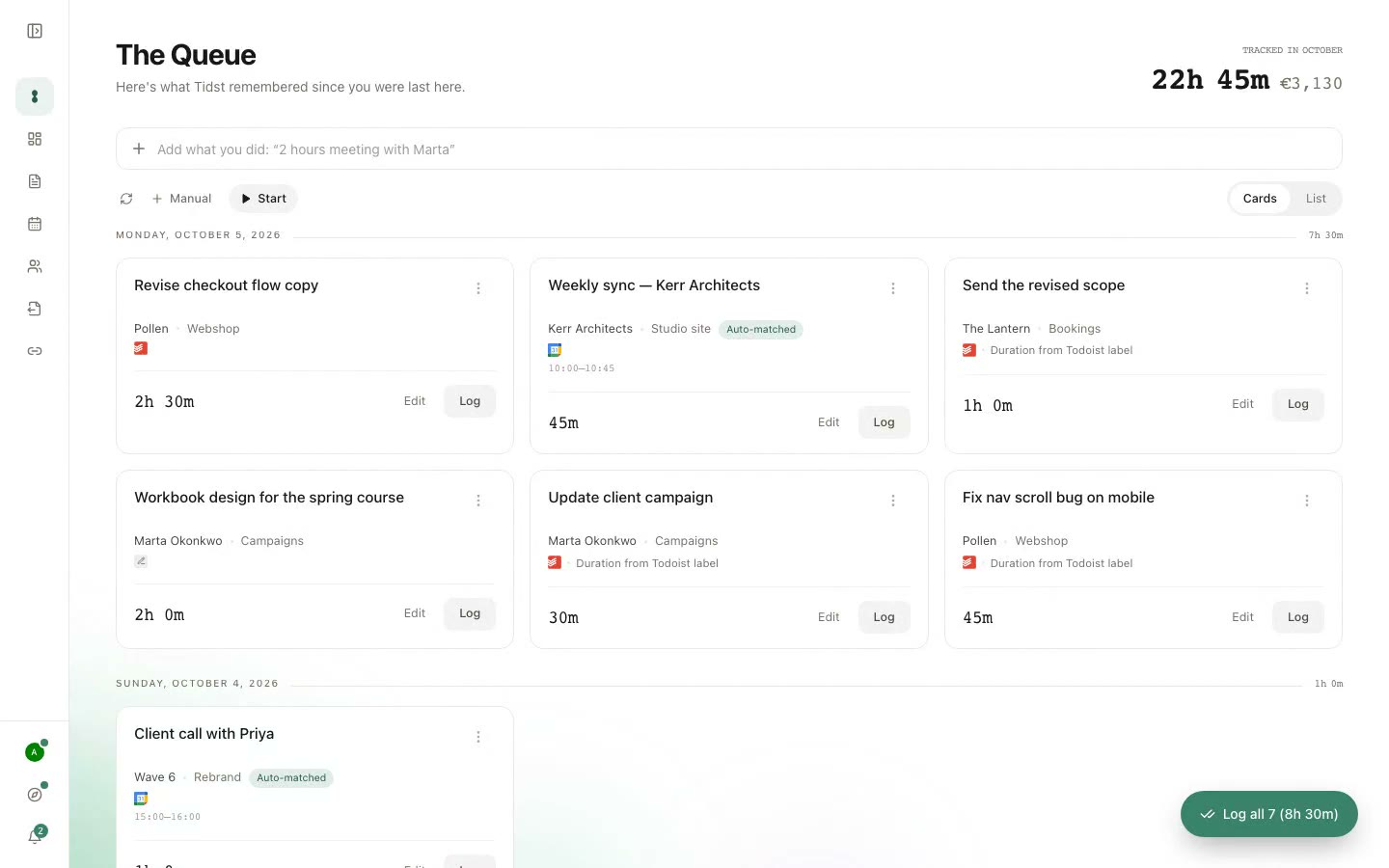
Then there is The Queue.
Your timesheet, with a memory.
The Queue is the part of Tidst that helps you remember.
Instead of opening a blank timesheet and trying to reconstruct your day, you can start with work Tidst already knows something about. A Queue item might be:
- a task you finished in a connected task app
- a client meeting from your calendar
- a line you typed, read into duration, client and day
- a task with its duration already filled in from a tag
You review the item before anything is logged. Check the duration. Change the client or project if needed. Decide whether it is billable. Log it, edit it or dismiss it.
Nothing becomes billable just because Tidst found it.
Cards or a compact list
Some people like to review one item at a time. Others want to scan a longer list quickly. The Queue can be viewed as cards or as a compact list. It is the same work either way.
Choose the view that makes sense for the amount of work waiting.
A normal day with Tidst
You finish a Todoist task in the morning: Update campaign structure @30min. Tidst can remember the task and its 30-minute duration.
At 11:00 you have a 45-minute client meeting in Google Calendar. That meeting can join the same Queue with its duration already known.
At 14:20 a client calls unexpectedly for 12 minutes. There is no task and no calendar event for that one, so you add it manually.
Later, you open Tidst. The task and meeting are already there. You add the phone call, review the durations and log what belongs on your timesheet.
That is basically the idea.
Once the time is logged
Do not rebuild the same information again.
Logged time can be used throughout Tidst. See your week day by day on the Timesheet, and hours and value by client and project. Share a live report with a client. Export a PDF or CSV when you need the data elsewhere. Take the same entries over to whatever you invoice with.
If you have added a client rate, Tidst can also show what the registered work is worth.
- Reports
- See the work behind the total, not just a number of hours.
- Live client links
- Share a link that stays updated as new time is logged.
- PDF and CSV
- Export the records when a client or another system needs them.
- Billing handoff
- Take a client’s billable work for a period into your invoicing system, grouped and priced, without typing it again.
- Costs
- Add a stock photo or a train ticket to a client, and it goes on the same handoff as a line beside the hours.
Tidst does not watch you work.
Tidst is not a passive activity tracker.
It does not monitor which websites you visit, which applications you use or what is on your screen. It works from the information you choose to give it: finished tasks from the tools you connect, relevant calendar meetings, timer sessions and the entries you type or add yourself.
That means Tidst will not know about every minute of your day. It is not supposed to.
The goal is to make your timesheet easier to remember without turning your workday into something that needs to be monitored.
Start small.
You do not need to configure every client before Tidst becomes useful. Start with one.
Add the client, connect the relevant project or board from the tool you already use, and add a rate if you want Tidst to show the value of the work. Then use it.
You can add more clients, projects and integrations later.
FAQ
- Do I need a task app at all?
- No. You can sign up with email, create your own clients and projects, and use the timer, typed lines and manual entries on their own. Connecting a tool is what lets completed work from it become part of The Queue.
- Does Tidst automatically know how long a task took?
- Often. A meeting carries its scheduled length. A task tagged with a duration like 30min before you complete it arrives with that duration ready, and a ClickUp task brings its Time tracked or Time Estimate. Otherwise Tidst can suggest a duration from similar work you logged before, and you confirm or change it when you review.
- Does every completed task appear in The Queue?
- No. Tidst reads only the projects and boards you choose to watch. Completed work from those can appear in The Queue; your personal projects stay out of your timesheet.
- What happens with calendar meetings?
- Google Calendar and Outlook events already have a scheduled start and end time, so their duration is known. Relevant client meetings can be brought into The Queue for review before you log them.
- Does Tidst automatically log what it finds?
- No. The Queue is a review step. You decide what becomes a time entry.
- Does Tidst remember everything I do?
- No. Tidst remembers supported work signals from the tools you connect. Work that never appears in a connected tool, your calendar or the timer can still be typed or added manually.
- Can I bring history from another time tracker?
- Yes. Tidst imports a Toggl Track or Clockify CSV export directly, and any other CSV with dates and durations works via a column mapper. Nothing is written until you have reviewed where it lands.
- Is Tidst an activity tracker?
- No. Tidst does not monitor apps, websites, browser history or screen activity.
- Can I still use a timer?
- Yes. Tidst includes a normal timer for work where starting and stopping one makes sense.
- Is Tidst free?
- Yes. Everything currently available in Tidst is free to use.
Work first. Time second.
If running a timer all day already works perfectly for you, keep doing it.
Tidst is for the times when your day is less tidy than that.
Finish the work. Have the meeting. Answer the call.
Then let Tidst help you remember what should make it onto the timesheet.
No trial · No credit card
Or read more about using Todoist as a freelancer.
About the name
Yes. I know what Tidst looks like in English.
No, it's not pronounced "tits."
Tid is Danish for time, which made considerably more sense when I named it.
Now you'll never unsee it.